Set up Encoding Profiles
The Axinom Encoding allows to encode videos while Axinom DRM protects them. This can be done by utilizing the Encoding API directly or by using the Video Service GUI. This documentation describes the process to configure the encoding settings in the Management System.
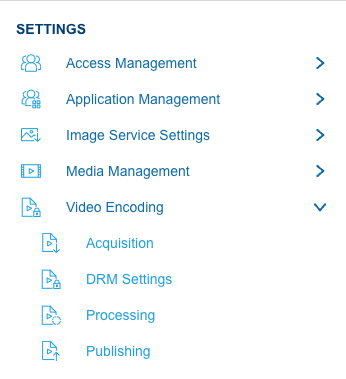
All encoding related settings are available in the Management System under Settings:
Video Settings
For security reasons, all the secrets should be encrypted using the credentials protection approach. Secret values are encrypted by the Encoding API’s public key. This way, your secrets can only be decrypted by the video decoder process - but not by anybody else, including the Management System itself. See Credentials Protection Tool.
Acquisition and Publishing Profiles
Acquisition and Publishing Profiles define respectively the Input Storage and the Output Storage for the Encoder. Input Storage is where the source video files are taken from (section "Content Acquisition" in a job request). Output Storage is where the processed video files are stored (section "Content Publishing" in a job request).
For security reasons, the acquisition profile and the publishing profile should use different storages. In development environments it is ok to share the same storage account and differentiate by container or by a sub-folder, but for production it is advisable to use separate storage accounts with different credentials.
We recommend to create your storage using Mosaic Hosting Service. You can setup acquisition and publishing with minimal configuration with that. Alternatively, you can create storage using Microsoft Azure or AWS.
Both, acquisition profile and publishing profile define the following properties. The following articles explain the steps to acquire the following properties when using :
Managing Profiles
Both Acquisition and Publishing profile stations have the same list-based management interface.
Profile List
The list view shows all profiles for the current tenant/environment with the following columns:
| Column | Description |
|---|---|
| Title | The unique profile name |
| Provider | The storage provider type (e.g. Azure Blob, Amazon S3) |
| Is Default | Indicates which profile is currently the default |
| Created Date | When the profile was created |
| Last Modified Date | When the profile was last updated |
From the list you can:
- Create a new profile using the Create button.
- Open a profile's detail view to edit its settings.
- Delete a profile using the inline menu.
Deleting a profile does not delete the videos that used it. Those videos will simply have their profile reference cleared. They can still be re-encoded by selecting a new profile.
Creating a Profile
When creating a new profile, you first select the Storage Provider, then fill in the provider-specific connection settings and a unique Title.
Profile titles must be unique within a tenant/environment. This title is also used to identify profiles in automated ingest jobs (see Profile Selection in Ingest Jobs below).
Editing a Profile
In the detail view you can update all settings of an existing profile, including setting it as the default profile.
Default Profile
Each tenant/environment has exactly one default profile for acquisition and one for publishing (whenever at least one profile exists).
- The first profile you create automatically becomes the default.
- You can change the default by opening a profile's detail view and checking the Is Default checkbox.
- The default cannot be unset directly — to change the default, set another profile as the default instead. The previous default will be automatically cleared.
- The default profile is used for automatic profile selection when no specific profile is explicitly chosen (see Profile Selection below).
Profile Properties
Properties common for every storage provider
| Property | Description |
|---|---|
| Title | A human-readable, unique profile identifier |
| Storage Provider | The storage provider type |
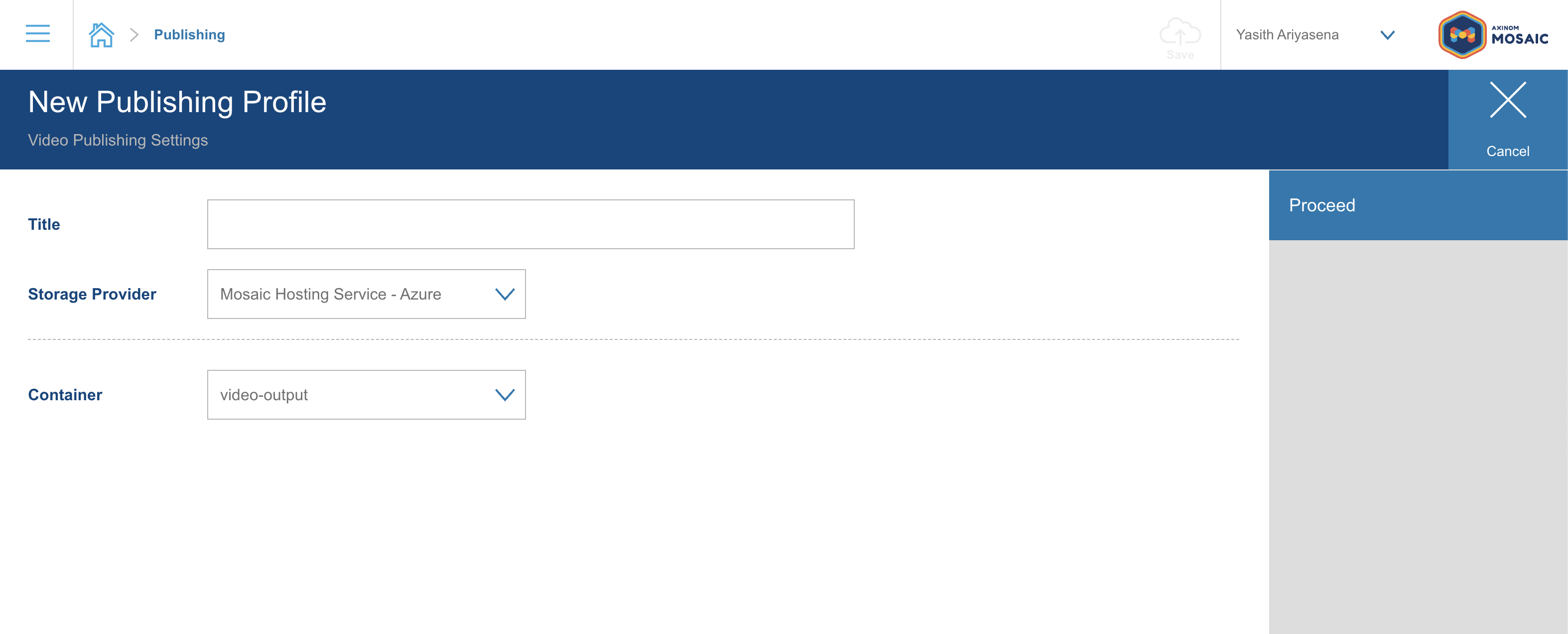
Mosaic Hosting Service specific properties
| Property | Description |
|---|---|
| Container Name | Which container to use. The container can be picked from list of available containers from Mosaic Hosting Service Cloud Storage. |
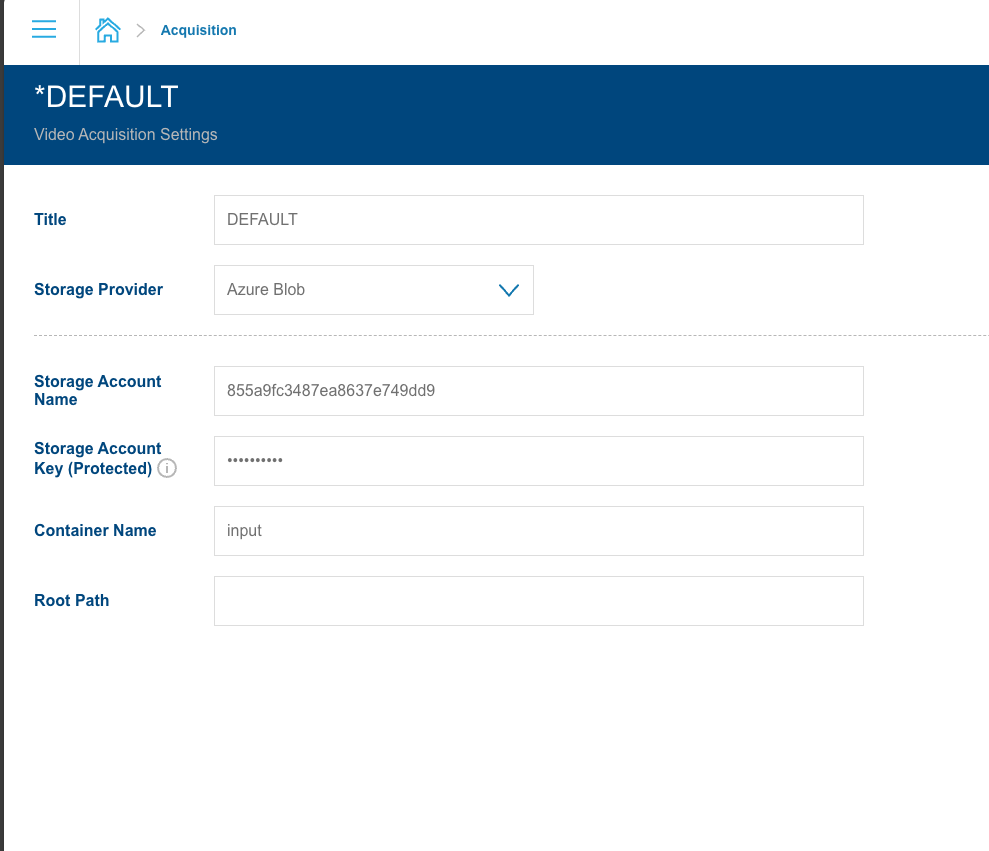
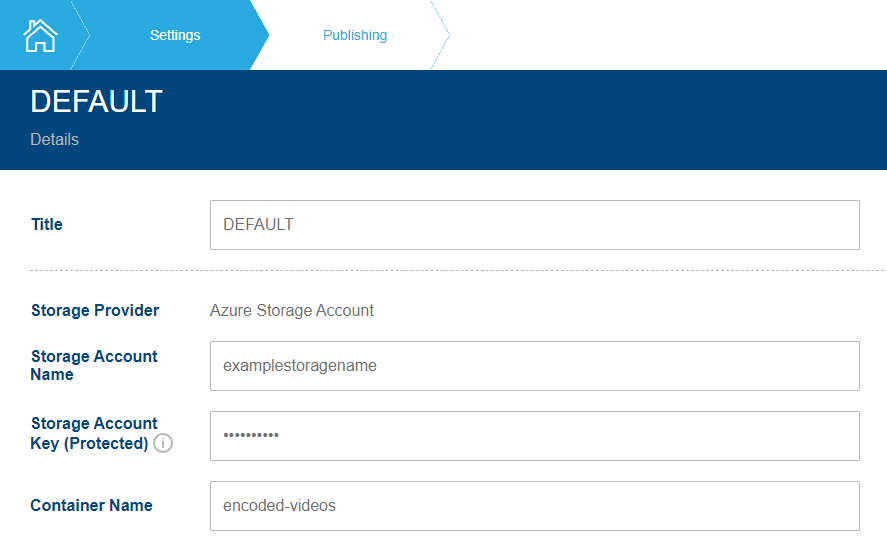
Azure Storage specific properties
You can find details on retrieving the following properties from the Storage with Azure documentation.
| Property | Description |
|---|---|
| Storage Account Name | The username/account name |
| Storage Account Key | The corresponding password/access key for the storage account above. It is a secret and must be encrypted, see credentials protection |
| Container Name | Which storage container to use. A Storage Account can have multiple Containers used for different purpose |
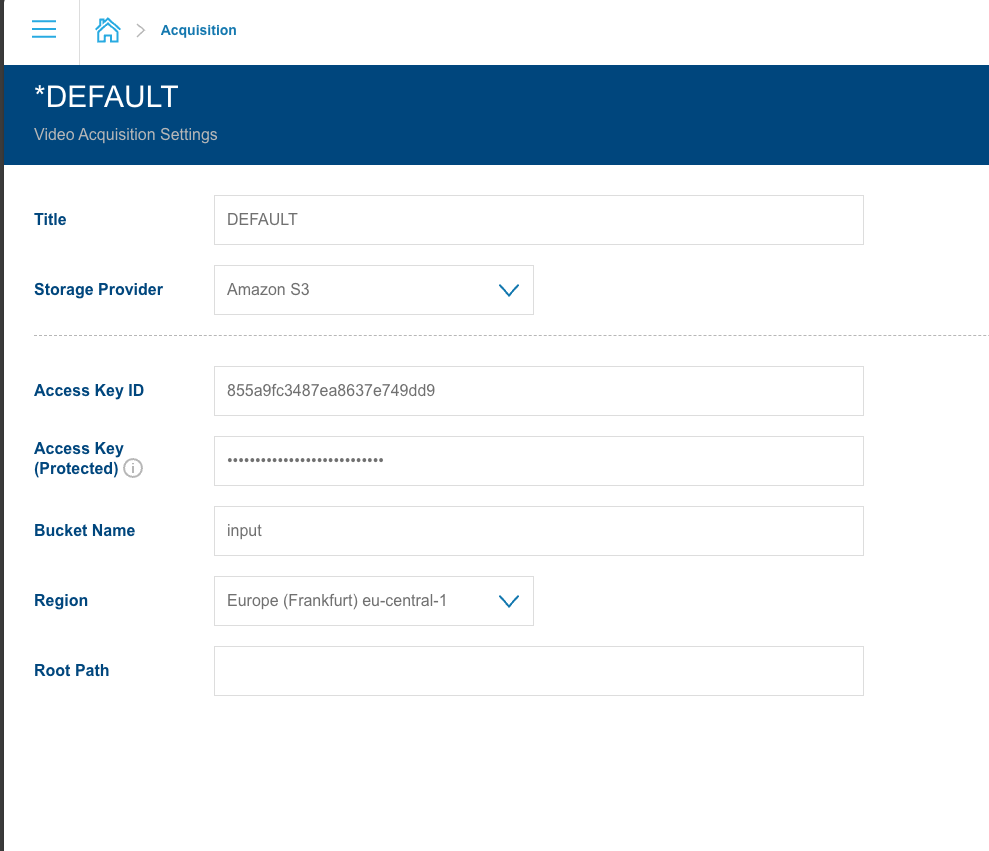
AWS specific properties
| Property | Description |
|---|---|
| Access Key Id | Access Key Id |
| Access Key | The corresponding password/access key. It is a secret and must be encrypted, see credentials protection |
| Bucket name | Which bucket to use. Multiple buckets can be accessible with the same access key for different purpose |
| Region | AWS Region to use for data storage. We recommend to use eu-west-1, as the encoding service also runs in this region |
Acquisition Profile
Acquisition Profile defines an Input Storage. The Encoding Service assumes, that for every video all input files will be placed in the same folder. All video folders should be nested under a root folder inside the specified container.
Additional properties of an Acquisition Profile common for every storage provider
| Property | Description |
|---|---|
| Root Path | An optional value that is used to define some sub-folder from which the videos should be downloaded. If no value is specified, the videos are acquired from the root of storage container/bucket. If a value is specified, it must be a single folder name or a path, e.g folderName/anotherFolder. In this case, the videos are acquired relatively to this folder. |
Two different security boundaries are involved here:
- The encoder side: the video encoder process runs in a secure processing environment without any outside process reaching into it.
This process needs read permissions to access the Input Storage (in Azure:
READ, in AWS:HeadBucket,ListObjects.GetObject). - The management side: The Mosaic GUI can show a list of all the videos that are available in the source storage location. This service, strictly speaking, only needs permissions to list sub-folders in the root folder.
In Azure it can be achieved with a SAS-token with
LISTpermissions. In AWS this level of granularity is unfortunately not reachable (see below).
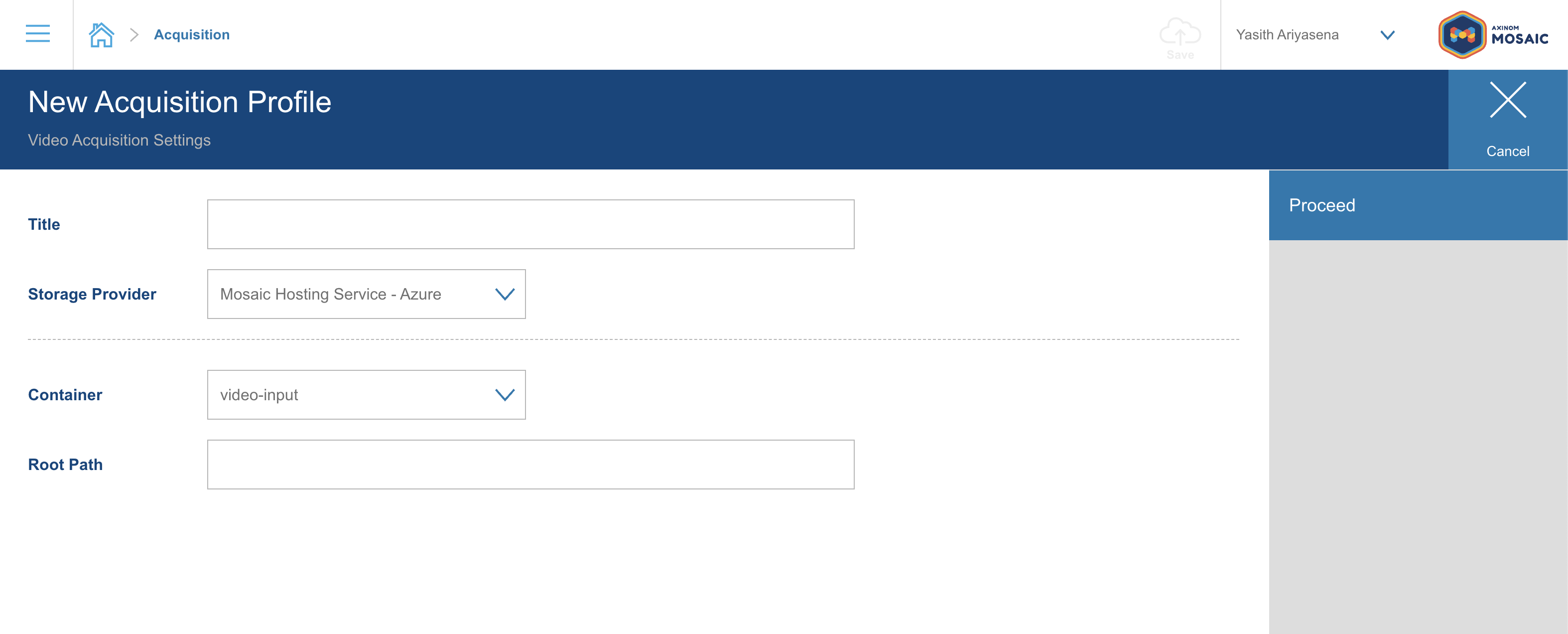
Mosaic Hosting Service
When using Mosaic Hosting Service as the storage provider, no additional properties are required.
Acquisition Profile / Mosaic Hosting Service
Azure Storage
Acquisition Profile / Azure
AWS
Acquisition Profile / AWS
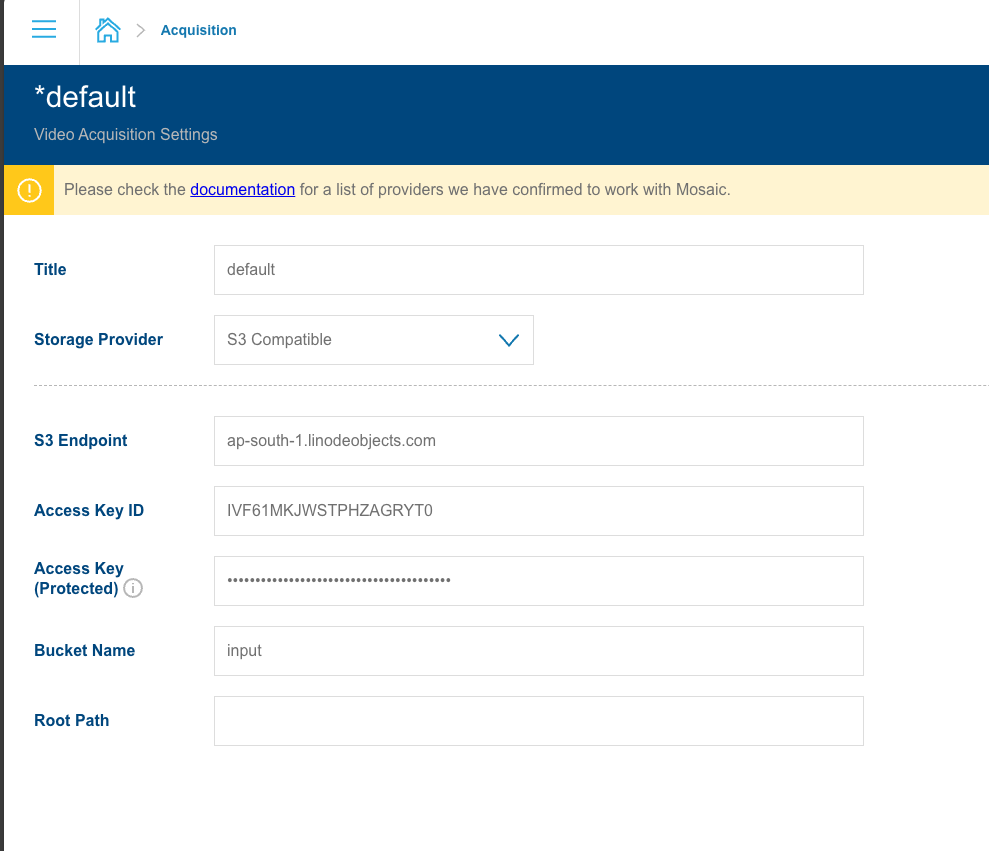
S3 Compatible Storage
Additional properties of an Acquisition Profile in S3 Compatible Storage
| Property | Description |
|---|---|
| S3 Endpoint | This is the region-specific URL used by S3-compatible clients to access object storage buckets via standard S3 APIs |
Acquisition Profile / S3 Compatible Storage
Once the GUI will be extended with a capability to upload video directly, it will additionally need a WRITE permission. For security reasons, those should not be valuable videos but rather trailers or other short video clips.
Publishing Profile
Publishing Profile defines an Output Storage. For every processed video, the Encoding Service will create a folder in the root of the Output Storage.
The folder name will be generated randomly, it will not be the same as the input folder name. You can find the folder name in the job details.
Publishing Profile / Mosaic Hosting Service
Publishing Profile / Azure
Profile Selection
In the New Video Screen
When encoding a new video from the New Video screen, you can select both an Acquisition Profile and a Publishing Profile using dropdown selectors. The default profile for each type is pre-selected automatically. You can change the selection before starting the encoding.
The file browser for browsing source videos in the acquisition storage reflects the currently selected acquisition profile — switching profiles updates the available source files accordingly.
In Video Details
The Video Details page shows which acquisition and publishing profiles were used when the video was originally encoded. Each profile is displayed as a clickable link that navigates to the profile's detail view.
If a profile used by a video has since been deleted, the profile reference will appear empty. You can re-encode the video and select a new profile if needed.
Profile Selection in Ingest Jobs
When triggering encoding via the Encoding API or automated ingest jobs, you can specify the profile to use by title:
| Scenario | Behavior |
|---|---|
| Profile title provided | Uses the profile with that exact title. Titles are unique per tenant/environment. |
| No profile specified, exactly one profile exists | Automatically uses the single available profile. |
| No profile specified, multiple profiles exist | The default profile is automatically selected. |
| No profile specified, no profiles configured | Error: profiles are not set up. |
In automated ingest workflows, it is recommended to always specify the profile by title explicitly. This avoids any ambiguity and makes your integration resilient to future profile additions.
Processing Profile
A processing profile defines how the desired video, audio, subtitle, and closed caption tracks can be found. You can define more than one processing profile to allow different use cases. One of the available profiles must be selected before the video encoding process can start encoding a new video. After clicking the Processing tile, you see a list of all configured profiles in the profiles explorer. After selecting a profile, you can manage its settings.
Processing Profile
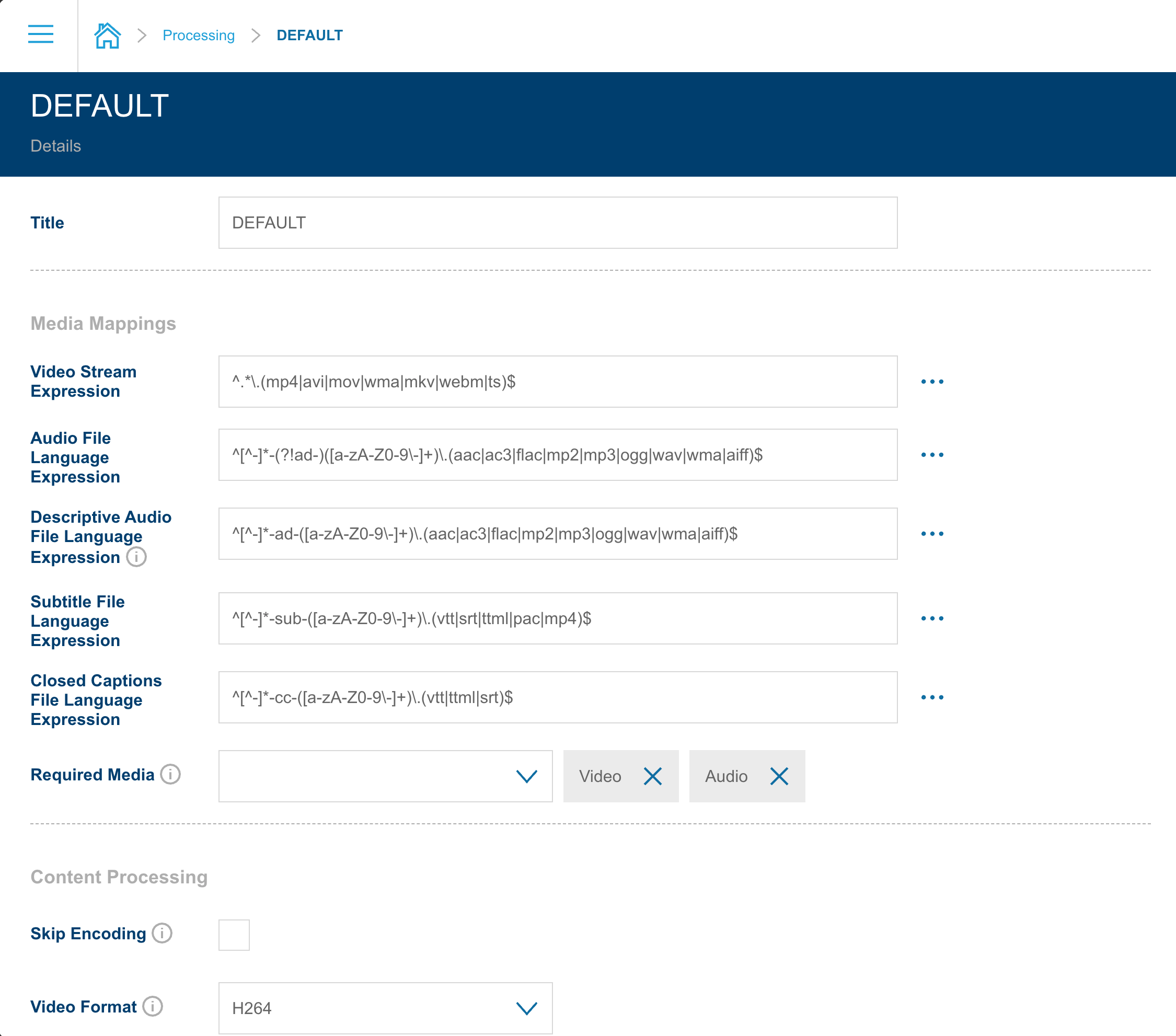
The default profile is filled out with a set of reasonable values that you can adjust to your needs. A description of all the properties can be found in the content processing and media mapping documentation. You can find a short summary from the table below. There is also a mapping to the sections and properties of a job request (see Encoding API).
|
Field |
Job Request Mapping |
Description |
|---|---|---|
|
Title |
A human-readable profile identifier. This can also be used as a profile identifier for customizable software integrations (e.g. during an ingest process of a customizable service). | |
|
Video Stream Expression |
MediaMappings.VideoStreamExpression |
A regular expression for finding the file that contains the main video stream. Provided expression can be checked/verified by clicking a button next to the input field - the opened inline menu enables opening a new browser tab where regex can be tested. |
|
Audio File Language Expression |
MediaMappings.AudioFileLanguageExpression |
A regular expression for finding the files that contain the audio tracks. Expression validation opportunity is also provided. |
|
Descriptive Audio File Language Expression |
MediaMappings.DescriptiveAudioFileLanguageExpression |
A regular expression for finding the files that contain the descriptive audio tracks. Expression validation opportunity is also provided. |
|
Subtitle File Language Expression |
MediaMappings.SubtitleFileLanguageExpression |
A regular expression for finding the files that contain the subtitle tracks and their language mapping. Expression validation opportunity is also provided. |
|
Closed Captions File Language Expression |
MediaMappings.CaptionFileLanguageExpression |
A regular expression for finding the files that contain the closed caption tracks and their language mapping. Expression validation opportunity is also provided. |
|
Output Format |
ContentProcessing.OutputFormat |
This field defines the output format of the encoded video, which could be one of the following:
|
|
DRM Protection |
ContentProcessing.DrmProtection |
Choose whether the video should DRM-protected (single key or multiple keys) or not. Before DRM protection can be used, DRM Settings have to be set |
|
Tar Mode |
ContentProcessing.Archiving |
Select a tar mode, also known as Archiving approach. |
|
Delete after Processing |
This option tells the encoding job to remove the source content from the acquisition location, once the processing is completed. CAUTION: If you activate this option, the source material is not available once the job completes, so you cannot repeat the job. Please only use this option for additional security if you fully understand the consequences. |
If you want to use more fine-grained control over the jobs, use the Encoding API directly.
DRM Settings
If you want to protect your videos with DRM, you need DRM credentials for your environment. (If you don’t plan to protect videos with DRM you don’t have to fill out this section.) If you didn’t do it yet, go to My Mosaic, DRM on the left side and Acquire Credentials. All the data you need below will be provided under the "Key Service" section.
Don’t lose the management keys, they can’t be restored (but you can request their reset - raise a support request).
DRM settings for the Encoding Service include the access data for the Axinom DRM Key Service. The Encoding Service will then acquire the necessary encryption keys from the Key Service. For details see DRM integration.
DRM Settings
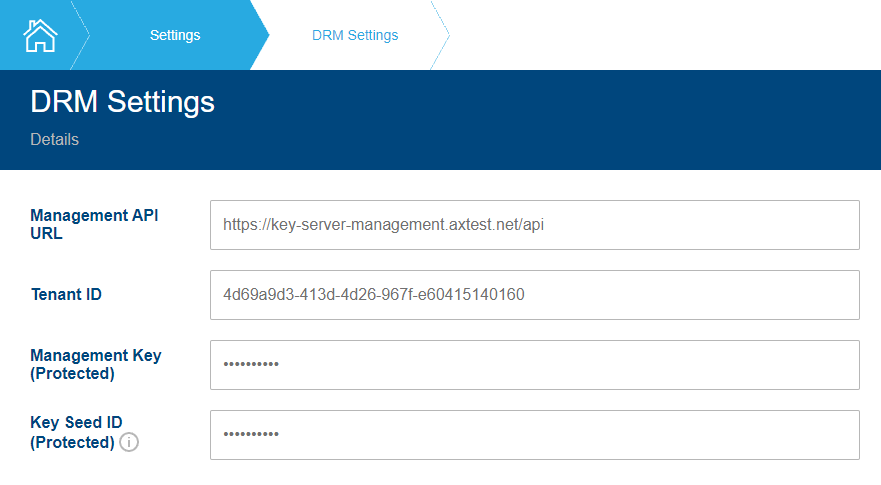
You can find a short summary from the table below:
| Field | Description |
|---|---|
| Management API URL | URL of the Key Service Management API, e.g. https://key-server-management.axprod.net/api |
| Tenant ID | Your Key Service tenant ID, UUID |
| Management Key | Your Key Service management key, must be encrypted, see credentials protection |
| Key Seed ID | The ID of the Key Seed from which they keys will be derived. Usually, you have only one Key Seed created automatically during DRM setup. But you can create more Key Seeds and decide which to use. Must be encrypted, see credentials protection. |